
Importing Structured Data Into Flexible Content Using Google Sheets and WP All Import
Overview
On the Carnegie Higher Ed project, we ran into a situation where we had a spreadsheet containing structured data that we wanted to import, but we also wanted the flexibility of open Block Editor content on the Resource post type. To solve this, we had a designer start by manually page-building an example Resource that would serve as a “Starter Template”. Then a developer copied the source code from that example page and replaced any relevant sections with placeholders, which could then be picked up by WP All Import and replaced with the relevant field data at import time.
Flexible Templates and Starter Content
For better or for worse, our Resource Template often boils down to, “The Header, Then a big open area, then the Footer”. This is great in cases where we want maximum freedom to build out whatever kind of page we want, but it also comes with the burden of actually needing to build that entire page. We solve this problem for human users by using Patterns and Starting Templates, but during an import we don’t get that opportunity since the post content field is a basic wysiwyg field instead of the block editor.
Structured Data
Contrasting with the completely open post template, the data being imported was a csv containing smaller, very specific bits of data like “description”, “main copy”, “form html” that needed to be plugged into some kind of prefabricated template with placeholders for those data points.
The Process In Detail
Designer Builds Whatever They Want
The “easy part” process-wise. They just build a page like anything else. At this point it’s just regular block content with no dynamic content linking or anything like that. In fact, it’s going to remain just static content when we’re all done too, that’s the whole idea!
Copy Design Prototype Code to Create Import Template
Then a developer goes into Code View on that designer-built page to copy that source code into their local IDE of choice. Remove any content that might be in that and replace it with a placeholder token for WP All Import, something like {title[1]} or {mainCopy[1]} or really any kind of field name.
Import the Content
From here it should just be a standard import. That work you did locally to set placeholder tokens in the content should have been the hard part, now you can just paste that entire thing into the Code Tab of WP All Import’s post content wysiwyg field. One additional consideration, if possible I would suggest that you add an imported_from field to specify the url that this content was pulled from. If we and up running multiple imports to make changes, this could come in handy later.
The Import Settings
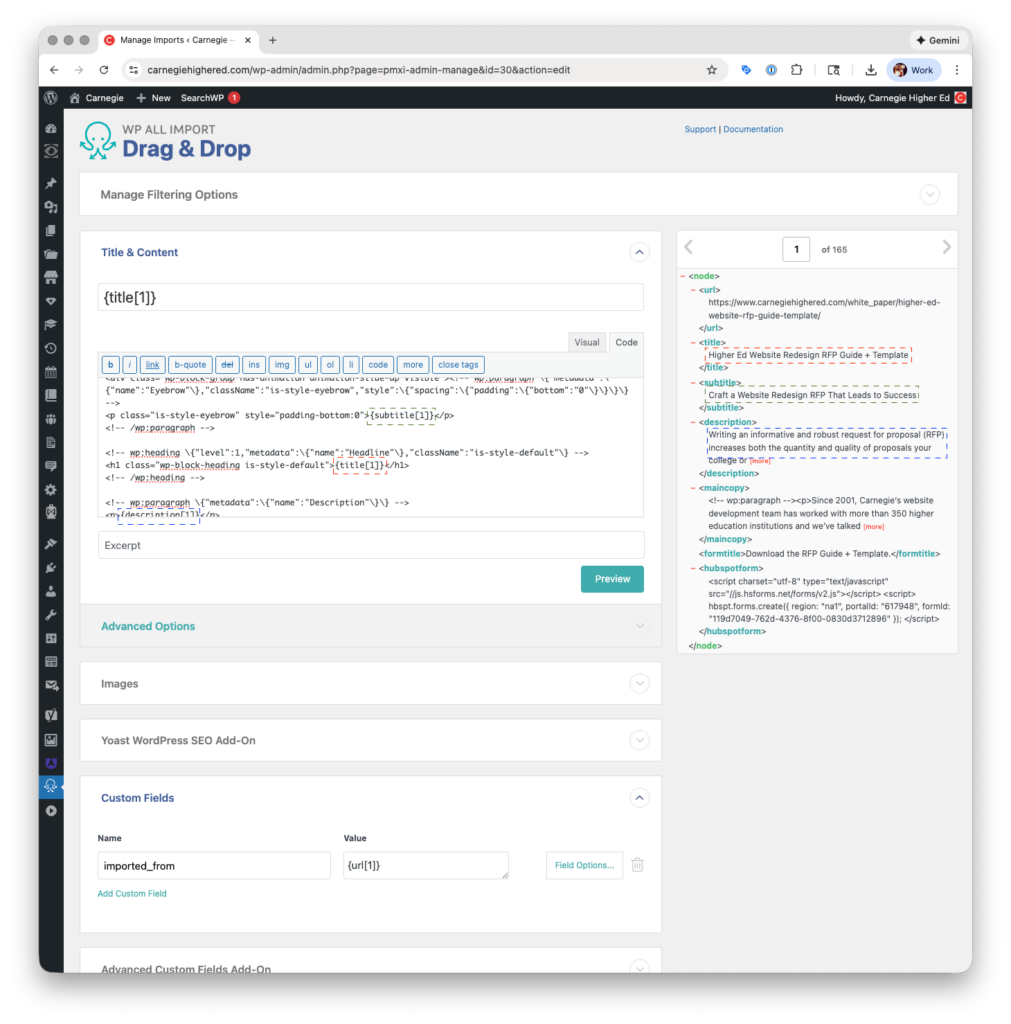
Here’s a screenshot to illustrate how it actually looks in WP All Import. As you can see, all the magic happens in the Post Content field, but really there’s nothing magical about it, we’re just putting Block Editor content into the post_content field.
Things to Watch For
If you look closely at the picture you’ll notice that all of the curly brackets in the content being imported have a leading backslash, except for the ones used to demarcate the WP All Import placeholders (like {title[1]}). This is an important step! Just do a quick find and replace after copy-and-pasting the designer’s work out of the Code View.
Less obvious from the picture but still important, the mainCopy field has the “block data” html comments before and after each paragraph, div, list item, and so on. In this case, I used a long series of regex find-and-replaces to turn all opening and closing html tags into their correct block comment + tag. For example, replace <p> with <!-- wp:paragraph --><p> and </p> with </p><!-- /wp:paragraph -->. This also means of course that you’re going to need to REALLY clean up that html before importing it, remove all styles and css classes; really I would just remove literally every single html attribute possible, except for maybe href.