
Cora Meganav
The standard Navigation block is great when you just want to put like 4 links in a menu, maybe with some basic flyouts; but it falls flat when it comes to adding a third tier, giving your menus any kind of layout, or injecting CTA content alongside your links. Cora Meganav is the solution to those problems.
The MVP—Meganav Content Template Parts and the Meganav Block
The original release of Cora Meganav involved two main components: “Meganav Content” Template Parts and the Meganav block. The template parts were just ordinary template parts that worked essentially like Synced Block Patterns, except unlike Block Patterns you couldn’t actually add them to your post content. The Meganav block worked like a substitute for the core Submenu block; instead of UI to add a list of sub-links, you would select a Meganav Content from your library and then when you hover over the menu item, your “flyout” is the template part instead of a menu of links.
Meganav Content
Really there’s nothing special about these at all, they’re just regular content and “Meganav Content” was a category they could be grouped into for the dropdown menu in the Meganav block. You can put anything you want in these and then that’s an easy way to get all kinds of content added to your navigation without us needing to hack extra functionality into the navigation blocks.
Meganav Block
A special block that can only be added at the top level of a Navigation block. This represents a “menu item” that you would use instead of the standard Submenu block. Instead of having another menu of links nested under your menu item, you select the Meganav Content you want.
What Was Missing
The Meganav block solves the problem of wanting complex layouts and rich content in our dropdowns instead of just simple lists of links, but it doesn’t really feel like a complete solution. The inside of the Meganav content is effectively a black box hidden away from the rest of the navigation hierarchy. Most of the time when we’re building a meganav there are links AND content in there. If all you needed was content this block was great, but its approach to links was lacking.
NEW Functionality in Core Submenu in 0.6.0
We solved this problem with a new version of Cora Meganav that greatly expands the capabilities of the core Submenu block, allowing an editor to build their own Meganav-like structure using the standard navigation controls, and then treating the Meganav Content template part as the content alongside the links, rather than representing the entire submenu. Of course, we are flexible, you can mix-and-match both approaches as needed. Do what feels right!
The Target
Zooming way out, most of our Meganav designs ultimately boil down to “A row of links, each arranged in columns, alongside a CTA”, so this is the pattern we’re targeting. You’ll be able to do more of course, but this is a good reference point.

New Attributes
To make this possible, we added new “Children Layout” and “Meganav Content” panels to the Submenu block, from which you can customize the arrangement of that submenu’s children and also pick out a Meganav Content part to use as one of those children. To make the Meganav from the thumbnail above, we need Tier 2 ( Education, B2B, eComm, CTA ) to be displayed in a Row instead of the usual Column arrangement. Tier 3 can stay in their regular column arrangement, but we need them to just always be visible instead of only popping out when their parent is active.
Also, all of this stuff only applies when you’re looking at the “Desktop” navigation. Once you pop into Hamberderland it’s just regular stacked links like the WordPress default says.
Children Layout
Static (toggle)
If turned on, this menu item’s children will always be visible, regardless of whether or not you’re hovering over the link at the top of the submenu.
Arrange Children (choose Column or Row)
By default the links under the submenu are arranged in a Column, but using this control you can change that to be a Row instead.
Vertical Alignment (choose Top, Middle, Bottom, or Stretch)
If you do choose the Row arrangement, you can also set a vertical alignment if necessary.
Meganav Content
Template Part (choose Template Part post)
This is a dropdown menu populated with all Meganav Content template parts in the site. Choose whichever one you want added to the submenu and it will be added to either the end or start of the child items (depending on the Position attribute)
Placement (choose With Items or Spanning)
By choosing “With Items” your Meganav Content will be treated as another Menu Item in the list with the links, and “Spanning” will instead display the content alongside them. For example, let’s say you’re using Column arrangement and After Items position. “With Items” means your CTA will be displayed underneath the last link and “Spanning” means that it will take up a second column to the right of the links.
Position (choose Before or After items)
Controls whether or not the Meganav Content is added at the start or end of the list of submenu items. This could mean different things depending on your Placement and Arrangement settings.
Width (choose Fit Items or Expand)
This setting is only available when using the “Spanning” placement, and is used to control which between the Links or the Meganav Content is responsible for
Examples
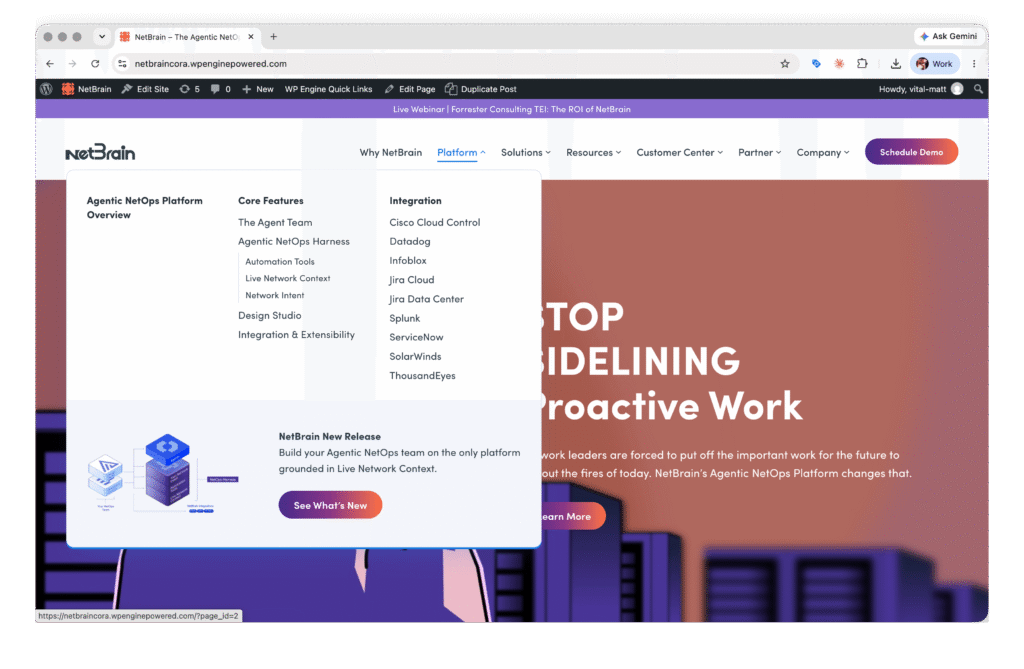
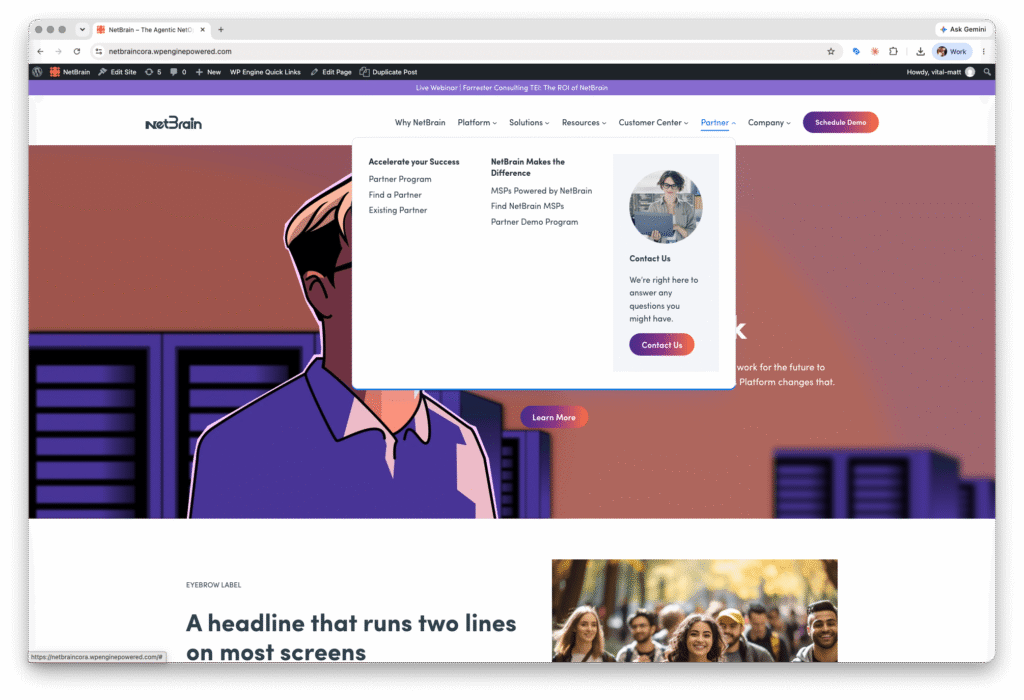

The Meganav Block Hasn’t Changed!
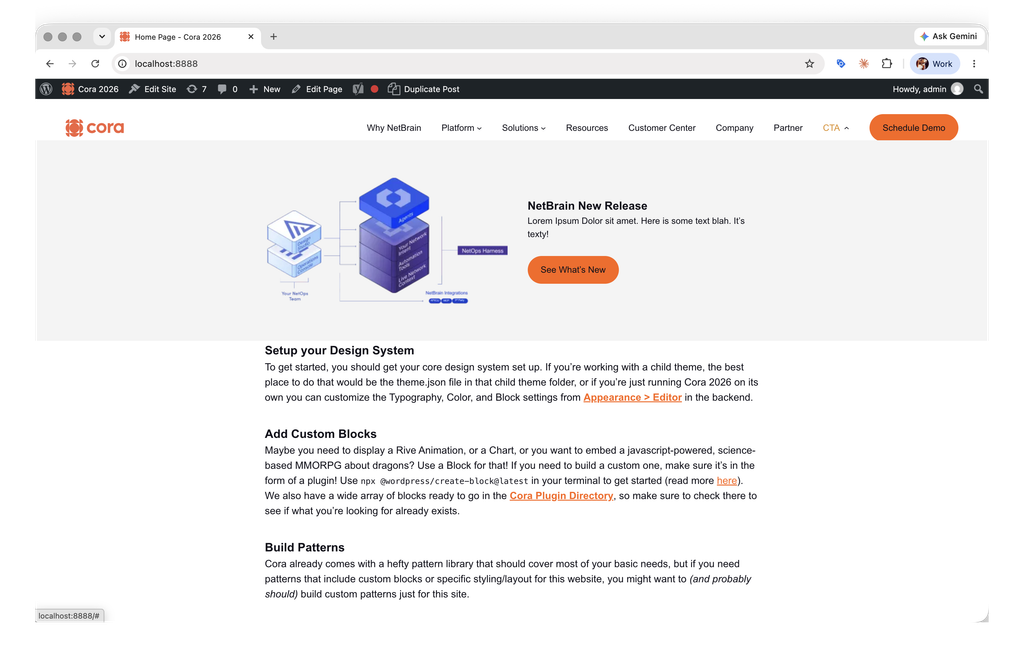
The new Submenu controls let an editor use those Template Parts in a different way, but the original “This Global Part Represents the Whole Dropdown” paradigm is still completely intact and you can have Meganav blocks happily sitting alongside Submenu blocks containing Meganav Content, all in the same Menu. If you need to stick a full-width interactive widget into your nav somewhere, this is probably still the best approach!
Not Technically “Functionality”, but Still Relevant
To make it a little easier to write custom nav styles for your theme, Cora Meganav also adds extra css classes to all of the navigation items with nav-depth-N classes. If you just want your top level links to be bold, it’s as simple as .nav-depth-1 { font-weight: 700; }. No complex selectors necessary!