Cora Swiper 2
Cora Swiper 2 is new plugin from Vital that is simple enough to quickly throw together a quick-and-simple image carousel in only a minute, yet powerful enough to allow for custom slider layouts built directly inside the Block Editor.
“Favor object composition over class inheritance.”
Design Patterns: Elements of Reusable Object-Oriented Software (1994)
Quick Start
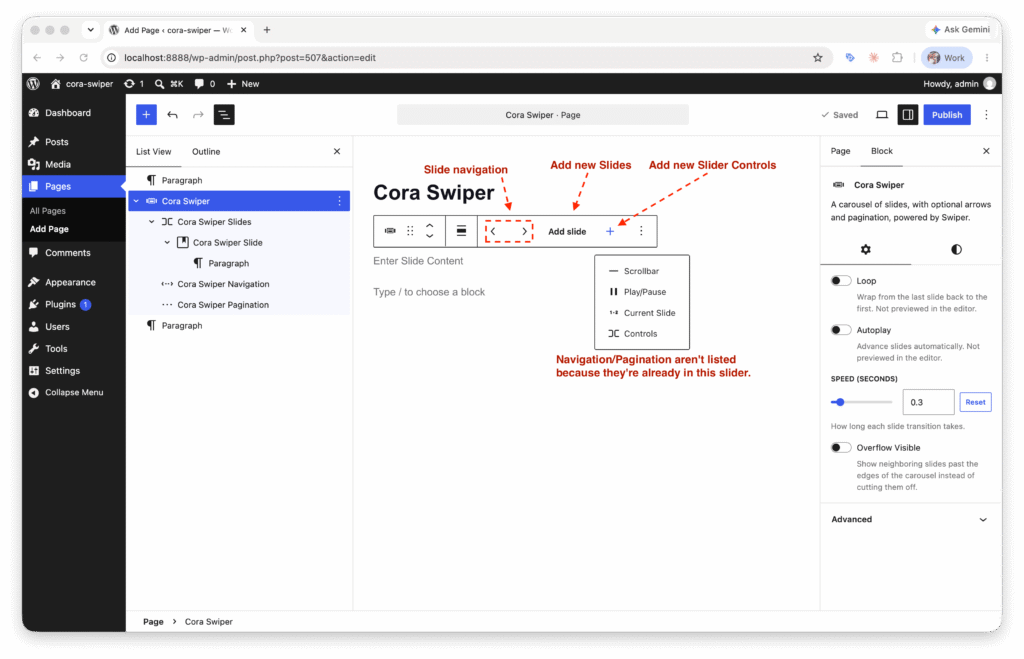
After installing and activating the plugin, add a new Cora Swiper block by simply going to the Block Inserter menu and picking Cora Swiper. When your new Slider is created it will already have Slides (containing just a single Slide to start), Navigation, and Pagination inside of it. If you want to add more slides to your slider, click on the “Add Slide” button in the Block Toolbar (the normal Block Inserter button isn’t here because Swiper mistakes it for a slide). If you want to add more controls to your slider, like the Current Slide block for example, that’s done using the plus “+” icon in the same toolbar.
Coming From Cora Swiper 1
The Original Functionality
Version 2 of Cora Swiper is a complete rewrite from 1.0.12. In the earlier version, the Slider was made up of a Vital Swiper block which had a collection of inner Vital Swiper Slide child blocks. All of the settings relating to the Slider were on that main block, stuff like autoplay, loop, slidesPerView, speed, and so on, but also toggles for whether or not to use the Fade effect, or Navigation, or Pagination, and then turning any of those might also expose a bunch of other controls for how those options look or function. When we needed to get really fancy with responsive effects, there was an open text field into which a power user could enter JSON to pass into the Swiper constructor.
The Problems
- First and foremost, there were like a billion attributes ( okay, maybe like 18 ) and controls in there. Just working with it was a headache due to the sheer volume of options in front of you at any given time.
- Because the entire slider was one huge block, you couldn't easily customize the layout or appearance of individual parts. If you had two different pagination styles and two different arrow styles, a dev would actually need to build out all four permuations as Block Styles for the whole slider.
- This bulk also was problematic when we wanted to try applying slider functionality to other blocks, specifically the Query Loop block. “Query Loop Swiper” has been our white whale for years.
- The JSON functionality was our only way to customize the slider for tablet and mobile, but was very fragile and insanely difficult to use for non-developers.
- The slider interactivity was very janky in the backend and would constantly re-render or get in the way of other blocks in the editor.
- Slides only allowed a limited set of blocks to be added as content, but Groups were allowed so there was effectively no real limitation there, just an extra step.
- Accessibility? Never heard of it!
New In Cora Swiper 2
The NEW Functionality!
The main difference here is that now you really compose the whole slider in the editor, not only the slides. Cora Swiper 1 was two blocks: "Swiper" and "Slide". Cora Swiper 2 is ten of them, all of which will be detailed below, but here's a quick list to get your appetite going.
Container Blocks
- cora/swiper
The main block, holding the entire slider. It's a slider! - cora/swiper-controls
Pretty much just like a Row block, but custom-fit just for Cora Swiper controls - cora/swiper-slide
No more limits on what can go in here; add whatever you want! We've also expanded the controls so these will behave like Group blocks, with color and layout controls. - cora/swiper-slides
Now that the controls in the slider get their own blocks, we needed a block for the "slide wrapper"
Control Blocks
- cora/swiper-arrow-button
A standalone block that can control a swiper instance without needing to be inside of it. - cora/swiper-autoplay-toggle
Your standard play/pause toggle switch. This will automatically be added to sliders that use autoplay - cora/swiper-current-slide
Used to display a "Slide X of Y" message in your slider. - cora/swiper-navigation
The next/prev slide buttons, but in their own block now! - cora/swiper-pagination
Same for pagination; this is now a block that you add to the slider instead of an option on the slider. - cora/swiper-scrollbar
Like navigation and pagination, we can now add a scrollbar child block.
The Solutions
- Now that the slider is made of multiple components, attributes live where they make sense. Pagination settings only live on the Pagination block. Navigation settings only live on the Navigation block.
- Same for Block Styles! You can now create Block Styles for the Navigation, Pagination, Scrollbar, and so on and customize their appearance in a slider without needing to build an ENTIRE slider style.
- It's going to be like a whole thing further down, but we added a custom "Slider Controls" component and api that other blocks (like Query Loop for example) can use to add Swiper functionality to existing blocks.
- WordPress 7.1 added Responsive Styling controls that gave us a way to set the slider options for Mobile and Tablet using the normal controls and without the need to write any JSON. Devs that want to directly modify the object being passed to the constructor can easily do so using a @wordpress/hooks
addFilterin javascript, even from the Custom HTML block in the editor. - The backend slider implementation has been rewritten with a custom react hook to ensure that it only regenerates when appropriate and custom styles/UI to prevent the Block Inserter from interfering with the slide count.
- Slides now have the same standard controls as Group blocks, and you can add any kind of child content to them that you want.
- Swiper's default accessibility options are now turned on by default, and the user can customize the Carousel name from inside the editor.
Cora Swiper
The mother ship. This is the block that contains your slides and all the controls. You can set a few of the global slider settings from this block, but remember that in this version a lot of the important stuff is going to be in other child blocks.
Custom Attributes
Loop (toggle)
Toggle to control whether or not the first slide comes back around after the last one.
Linear Timing (toggle)
By default, the slide animation will ease in and out when transitioning between slides. If Linear Timing is turned on, it will instead just use a single, constant speed. Generally speaking, this tends feel weirdly robotic and look bad, except for when your slider is meant to be a non-stop "marquee-style" ticker.
Autoplay (toggle)
Exactly what it sounds like. If you turn this on, the slider will move on its own! Spooky. WCAG AA Compliance demands that an auto-playing slider have a pause button, so turning this on will automatically add the Play/Pause button to your slider if you don't already have one there.
Autoplay Delay (# of seconds)
How many seconds to wait between slides when autoplay is turned on. If you turned Loop and Linear Timing on, you probably want to reduce this all the way down to zero. Otherwise, higher is better; people are trying to read!
Pause on Hover (toggle)
Defaults to being turned on, but you can disable if you're sure you want to do that. Keep in mind people might be trying to click things! Still, for non-interactive logo sliders or whatever, it might be okay. (probably still violates WCAG-AA though... maybe you can mark the thing as decorative? I would check if I were you)
Speed (# of seconds)
How many seconds it takes (usually <1) to transition from one slide to the next.
Overflow Visible (toggle)
Turn this on to see the slides outside of the "active area" defined by the Swiper Slides child block.
Core Attributes
Dimensions
Padding, Margin, and Block Spacing. Note that the Block Spacing won't do anything unless you have at least one static child block besides the slides.
Cora Swiper Slides
This block represents the swiper-wrapper element in your slider. All of the controls around how many slides are visible at a time and how they are aligned vertically have been moved off the main slider and onto this block.
Core Attributes
Vertical Alignment (top, middle, bottom, stretch)
Custom Attributes
Auto Width (toggle)
This defaults to off, so Swiper lets you choose the "slides per view" and Slides are sized based on the size of the Slider. If enabled, slides are instead sized based on the size of their content.
Slide Width (css length)
When Auto Width is turned on, this setting is enabled so that all slides are forced to the same specific width. Percentage values are allowed here but that would be weird, just use slidesPerView instead.
Slides per View (float 1-6)
How many slides are visible at a time. Only available when "Auto Width" is turned off.
Space Between (spacing size or css length)
Just what it sounds like. This is used to customize the amount of space between the individual slides. Defaults to just letting you select from the theme's "Spacing Sizes", but can also be changed to a manual css length value.
Cora Swiper Slide
Honestly kinda boring compared to everything else in here. Just a generic block that works similarly to a vanilla Group block, but can only be added to Cora Swiper Slides. It doesn't have any custom attributes and you can add whatever blocks you want to it, but it does have a lot of the generic group block style controls just to save you the trouble of adding an extra one inside if all you're looking for is a basic container.
Core Attributes
Typography: Color, Size, Line Height
Background: Image, Color
Layout: Inner blocks use content width
Dimensions: Padding, Block Spacing, Aspect Ratio, Minimum Height
Border: Border, Radius
Cora Swiper Navigation
Your Swiper block will already have Navigation pre-installed when you add it. This block includes both the Previous Slide AND Next Slide buttons together at the same time to ensure they get styled together.
Out of the box, the two buttons use the standard appearance that comes from Swiper itself, except that we do have a smol bit of css that changes the --swiper-theme-color custom css property from Swiper's default of #007aff to var(--wp--preset--color--accent, #007aff). So basically, it will use the primary accent color from the theme first (but then fall back to regular ol' Swiper Blue if you somehow don't have one).
Core Attributes
The basic core options are wired up so that you can control the icon color. If your theme wants to have different icons then it can just register a new Block Style for the cora/swiper-navigation block using one of the built-ins as a basis.
Block Styles: Chevrons, Arrows
Typography: Color (there's no text of course, but this controls the icon color!)
Background: Color
Dimensions: Padding, Margin, Block Spacing (more on these settings below under Static Position)
Border: Border, Radius
Custom Attributes
Static Position (toggle)
The default behavior for the Navigation block is to be absolutely positioned over the entire slider, with the Previous Slide and Next Slide buttons sitting in the center at the left and right edges. If you want more control over the placement of the Navigation, you can turn on Static Position and then the Navigation block will just be a regular block in the flow, so you could move your navigation above or below your slides as needed. This will also unlock standard horizontal alignment controls in case you'd prefer to have your arrows grouped together on one side.
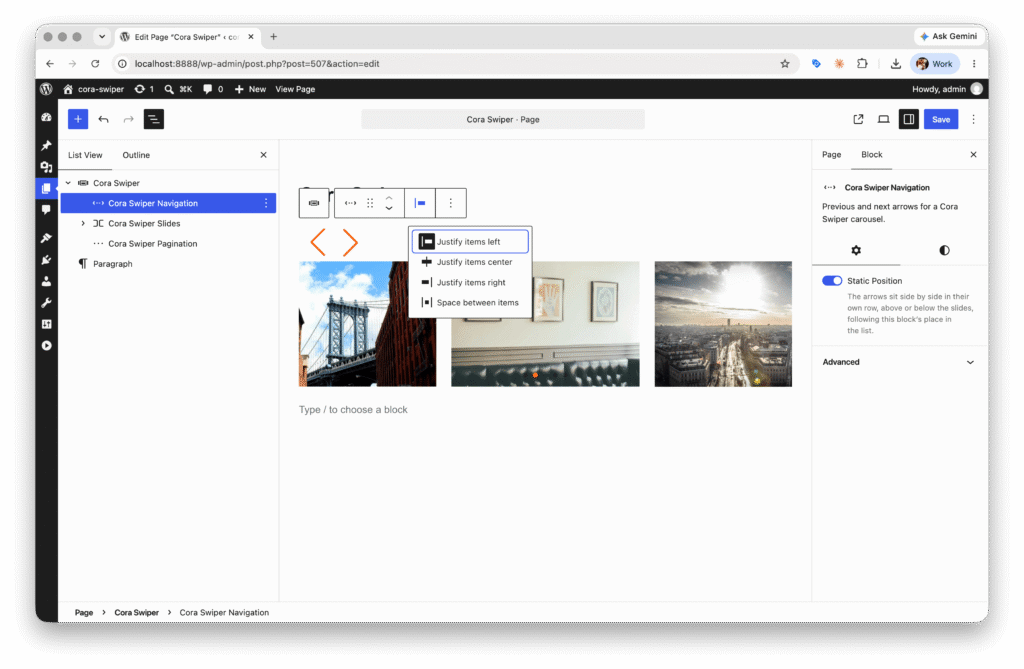
Note: this setting can also effect how Dimensions attributes behave. For example, Block Spacing and Vertical Margin only work when this is turned on!
Cora Swiper Pagination
Many of the settings in this block are pretty much identical to the Cora Swiper Navigation block. Since this is a set of dots and not a specific pair of buttons there are a few small differences, but everything should do pretty much what you would expect.
Core Attributes
Block Styles: Dots, Dashes (like the Navigation block styles, these are more for demonstrative purposes)
Typography: Color (defaults to the theme's accent color if not set)
Dimensions: Padding, Margin, Block Spacing
Custom Attributes
Clickable (toggle)
On by default, but if you just want this to be a purely decorative component, you can turn it off.
Static Position (toggle)
Basically exactly the same as Static Position on the Navigation block. Pagination defaults to being absolutely positioned over the bottom of the Slider, but you can turn on Static Position to instead place them before or after the Swiper Slides. The main difference from Navigation, Static Position doesn't influence the other block attributes like alignment and spacing; they always work the same regardless of positioning style.
Cora Swiper Scrollbar
Sort of an off-brand Pagination in case you'd rather drag a bar instead of clicking a dot. No controls to style this one at the moment. I could see a future update where this gets width and color controls if anyone ever asks for them, but this is here more because it happened to be in the Swiper example code and I wanted to push the "Slider Controls as Child Blocks" paradigm, not really because anyone asked for it.
Core Attributes
Dimensions: Margin
Custom Attributes
Draggable (toggle)
Like Clickable for the Pagination block, you can turn this off if you want and then it's just there for visual effect.
Static Position (toggle)
Same as the Navigation and Pagination blocks. This one defaults to being absolutely positioned above the bottom of the slider, but if you enable Static Position then you can place the scrollbar above or below the Swiper Slides as desired.
“Row” Controls vs. ”Corner” Controls
Advanced Layout Technique
The three child blocks we’ve looked at so far: Navigation, Pagination, and Scrollbar, all share a common ui for how their layout works. They're all absolutely positioned in a specific place by default, but can be switched to Static Position mode, in which case they'll take up a "row" in the Slider layout either above or below the slides depending on the order of the blocks.
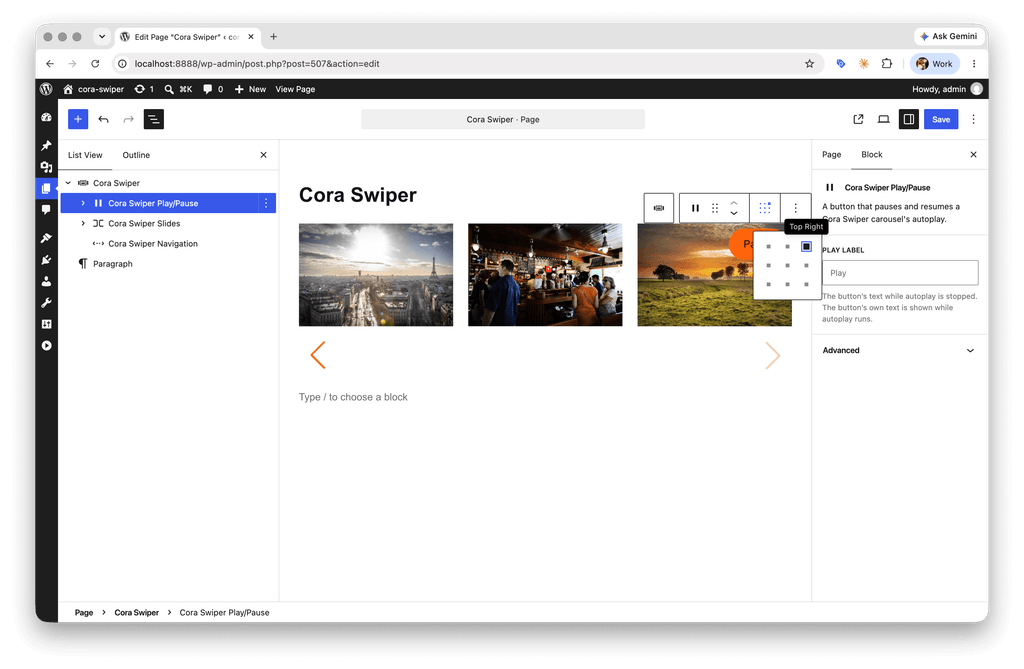
The rest of the controls are smaller, and rather than taking up an entire row they are placed in a corner. In practical terms, this means that they get a MatrixAlignmentControl in the Block Toolbar to pick a position and don't have their own static position option.
Cora Swiper Play/Pause
This is a Block that contains a Button which can be clicked to toggle your slider's autoplay. That's it, that's the whole block. There are a few other things to note:
- That's a Button Block it contains, not just a regular button element, so it will inherit the default button appearance from the rest of your theme, and all of the visual customization should really be happening there.
- WCAG Success Criterion 2.2.2 "Pause, Stop, Hide" requires that you have a Pause button on any automatically running animation that lasts for more than five seconds. So, if you turn enable Autoplay on your slider, this block will automatically be added to it. You're free to remove it if you want, but you will be violating AA compliance.
Core Attributes
Position: (left, center, right) (top, center, bottom)
Custom Attributes
Play Label (text)
When you click the button and the slider is paused, the text will change to Play, or whatever you enter into this field if you want to override that label.
Cora Swiper Current Slide
This block is used to display "X of Y" text where X is the current slide number and Y is the total number of slides. This is another control like Play/Pause that gets the MatrixAlignment control instead of the Static Position option.
Core Attributes
Position: (left, center, right) (top, center, bottom)
Typography: Color, Size, Appearance, Line Height, Letter Spacing, Decoration, Letter Case
Background: Color
Dimensions: Padding, Margin, Block Spacing
Custom Attributes
Show Total (toggle)
If turned off, the block will only show the current slide number.
Separator (text)
Defaults to "of", but if you wanted it to be like "/" or something, here's where you change it!
Cora Swiper Controls
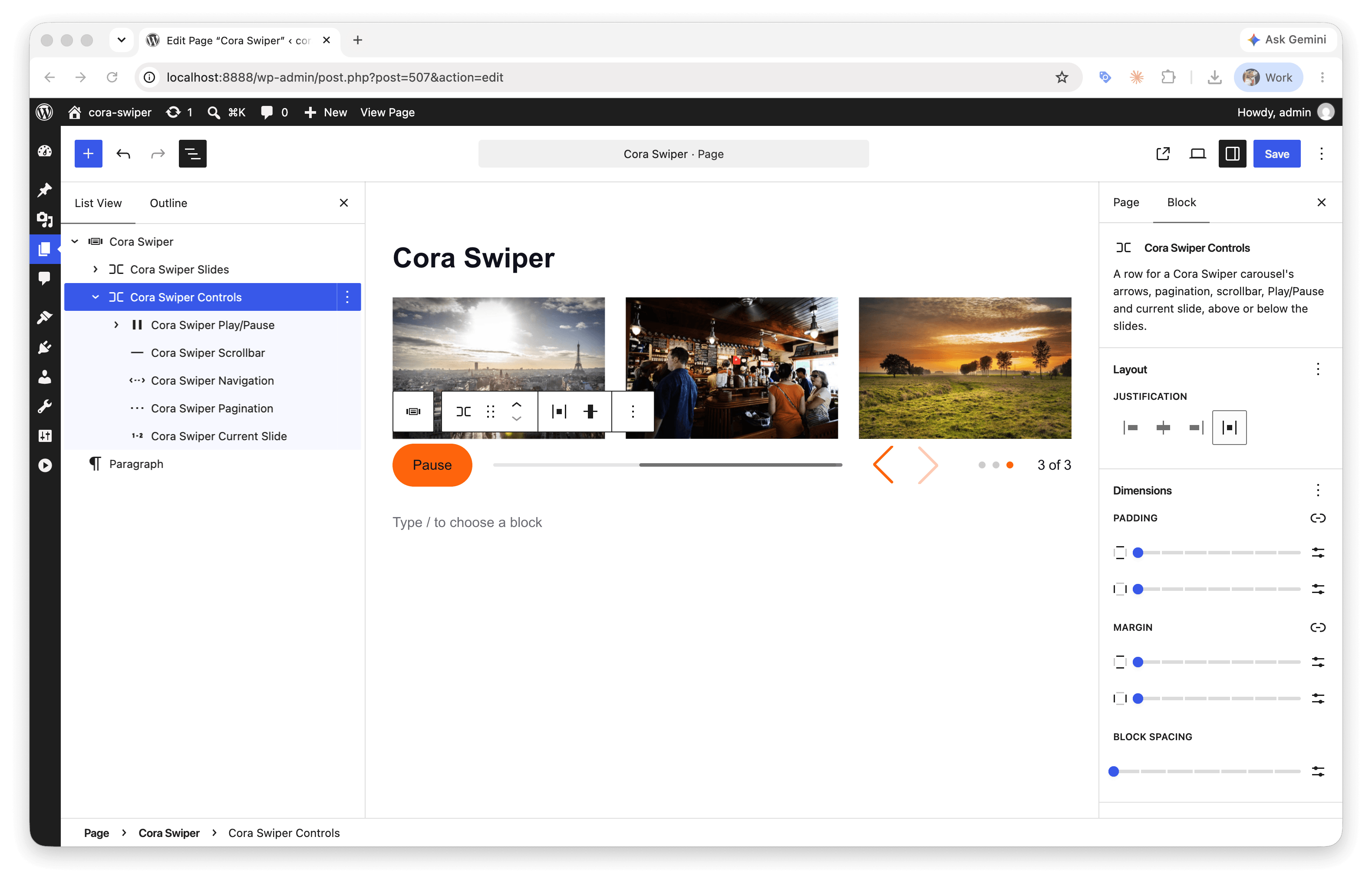
The Controls block is just a generic statically positioned flex row, that can contain any of the other control blocks, Row or Corner style. This lets you get around the lack of Static Positioning on the corner controls, and also have multiple row controls side-by-side.
Core Attributes
Alignment: Top, Middle, Bottom, Stretch
Justification: Left, Center, Right, Space Between
Dimensions: Padding, Margin, Block Spacing
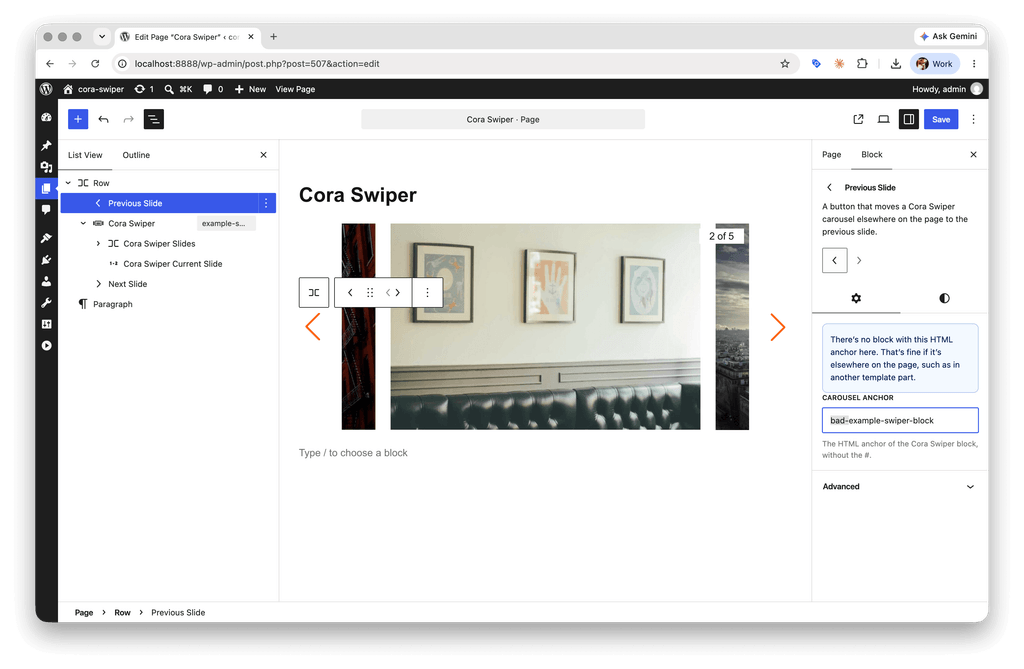
Cora Swiper Previous/Next Slide
Finally we have the Previous/Next Slide Block. This is handy for cases where you want the Navigation buttons to sit outside of the slider's container without having to mess with overflow or clipping paths. Keep in mind that for this to work, you will need to give an anchor name to the Cora Swiper block that you want to control, and then also enter that name on the button controlling it. It will warn you if the entered name doesn't match anything, but not force anything (since the slider being referenced could be in a synced pattern or not loaded yet).
Core Attributes
Block Styles: Chevrons, Arrows
Typography: Color
Background: Color
Dimensions: Padding, Margin
Border: Border, Radius
Custom Attributes
Carousel Anchor (text)
The anchor name of the carousel that you want this button to control (but leave out the #).