Cora Swiper / Migration
One thing that should be very clear by now, Cora Swiper 2 is a total rewrite from Swiper 1. The block structure and names are different, the attributes are different, the frontend script is different. It’s literally not possible to write a “block deprecation” function to convert a v1 block to the current version. Basically, if you just install Cora Swiper 2 over Cora Swiper 1 and call it a day, you are going to have a bad time. Fear not, traveller! Cora Swiper / Migration is here to help.
This Process in Not Automatic!
Don’t get the impression that you can simply install this plugin, run it, and be done. It’s a utility to help ease your way through the first 80% of the work, but as with any bulk replacement it’s critical that you actually review the output afterward and make fine adjustments as needed. (And it should go without saying, but this is doubly true if you’re using AI assistance on step 4. Make sure you review everything!)
How to Use
Have a Plan
Listen, and this is important, I need you to promise me that you’re not going to run this tool directly on the production server. Don’t do it. Don’t even try it. I’m not going to tell you exactly how to do the whole thing, because sites are often full of surprises, but I think a good overall guideline here is that you’re going to need to start a “content freeze”, copy your production site to a temporary staging ground, do all of your work there, and then migrate back. It’s going to involve bulk content replacement in the database AND updates to your theme code, so be ready for that.
Summon the Wizard!
Start by going to Tools > Cora Swiper Migration in the backend. Here you’ll be guided through a five-step wizard that will scan the site content and theme code for v1 Cora Swiper
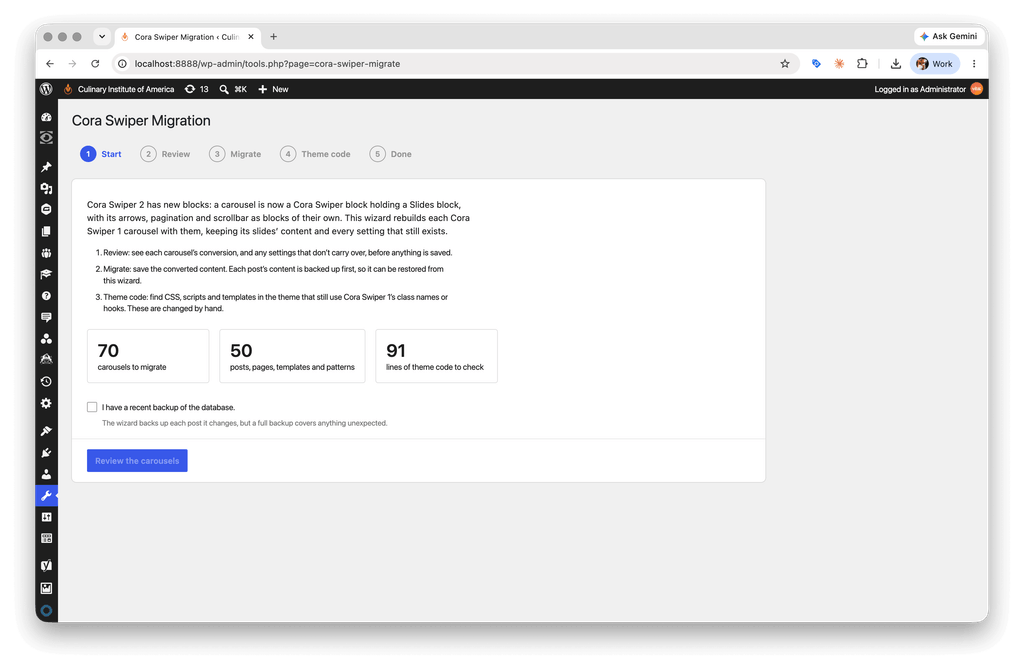
Step 1 – Start
You can hardly call this a step really, but here you’ll get a high-level idea of how much work is in front of you and a reminder to make a backup first. Don’t lie to the computer; make the backup, and then move on to Step 2 to really get started!
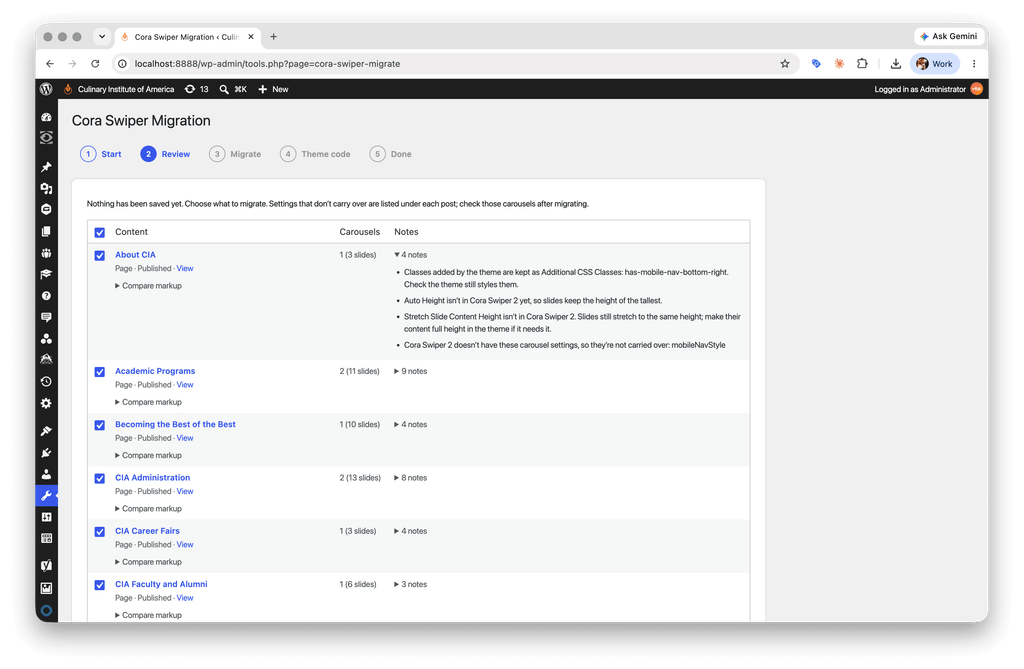
Step 2 – Review
On the Review step, the wizard will scan the database to find any posts containing v1 Swiper blocks and then list them for you, along with its proposed content replacement (at this point nothing has actually changed yet) and any notes on things that you’re likely going to need to tweak by hand. Select which posts you’d like to convert (or not) and then move on to the next step.
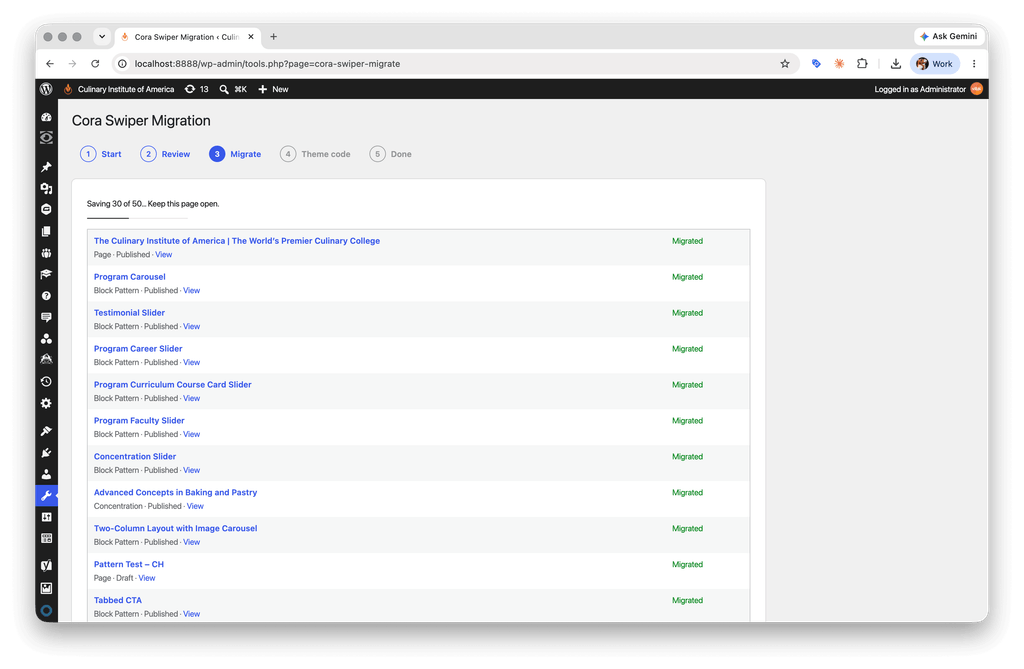
Step 3 – Migrate
Here’s the part where the wizard traverses the list of posts and actually does the replacement. Nothing for you to do here but watch and chill. No seriously though, don’t touch anything; this script is running on the frontend. Once it has migrated all of your items, move onto the big one, Theme Code.
Step 4 – Theme Code
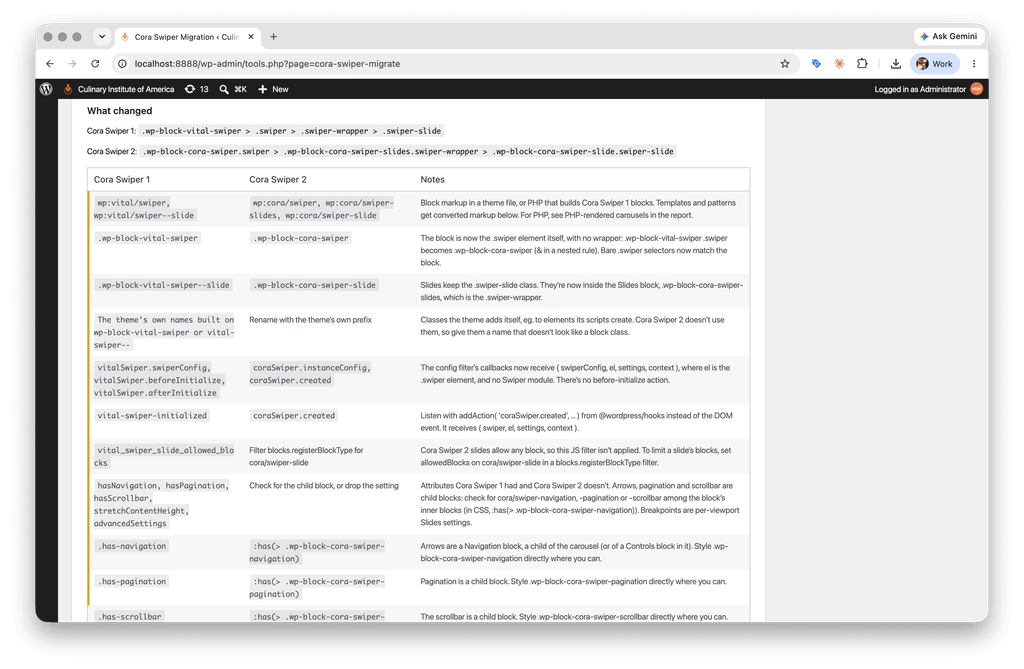
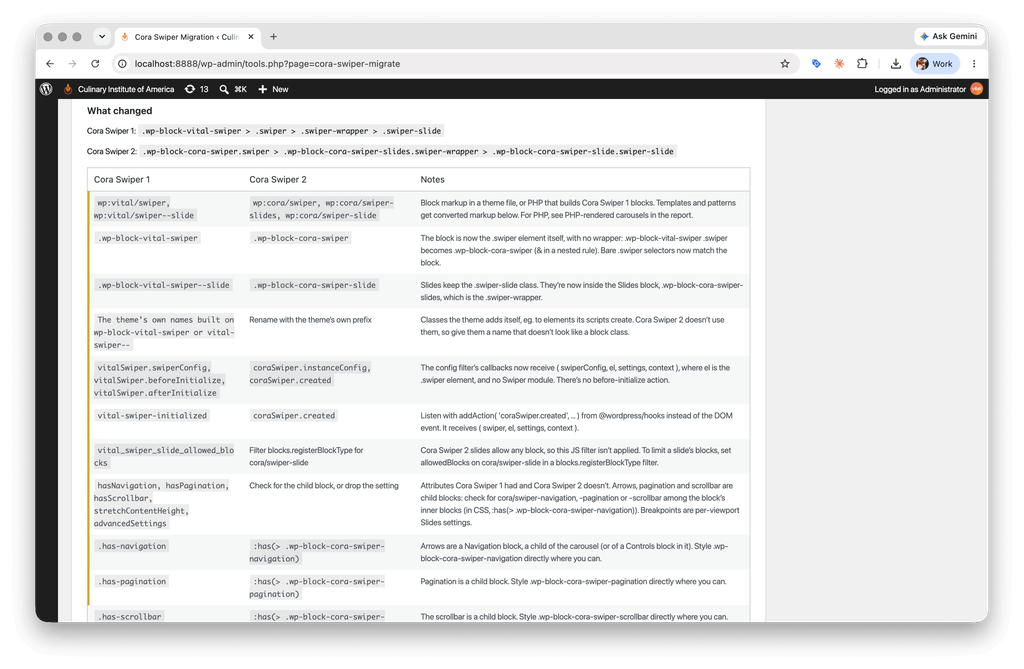
Now the wizard will present you with a summary of all of the places in your theme code that reference the old swiper, along with a summary of what has changed from Swiper 1 to 2. Download this report, and use it as a guide for working through the necessary theme updates. Or, you know… should you happen to know any robots who like to eat markdown files and spit out code edits, just give it to them!
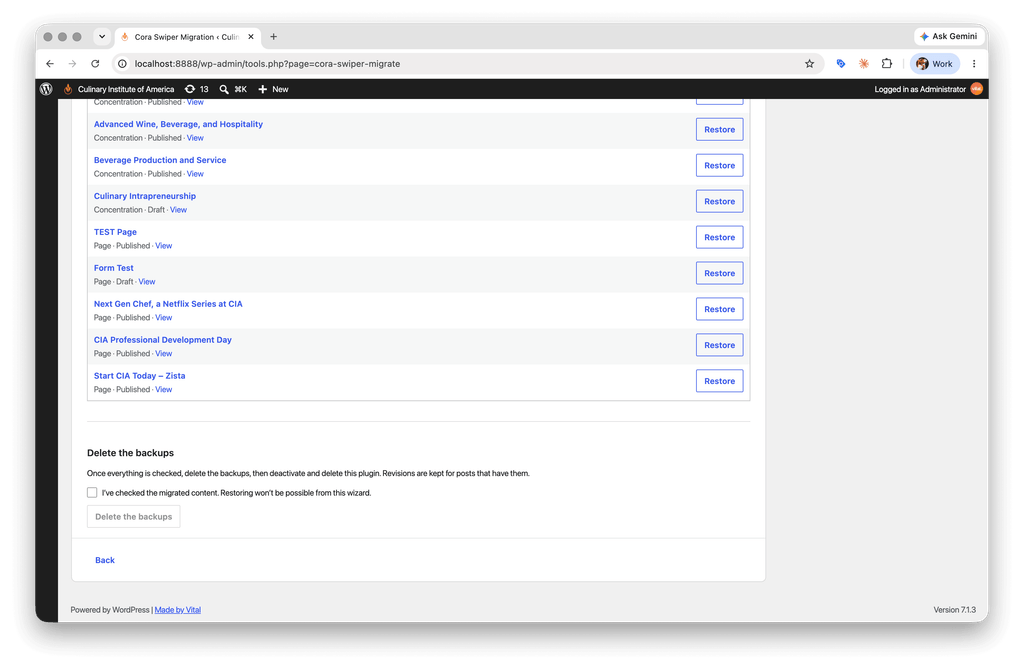
Step 5 – Done
And now you’re done. Nice job! Or was it? If something did go wrong, this is your chance to revert posts to their original state. If you are satisfied with the results, scroll all the way down to the bottom and clean up these backups so they’re not cluttering up the place.